
Add a new team member
Add a new team member to your Vedi practice account.
You'll utilise
Vedi app
Vedi Portal
Microchips
Scanner
You'll use
VetDB app
VetDB Portal
Microchips
Scanner
No items found.
No items found.
Add a team member via email invite.
- Click 'Team' in the top right of the navigation bar, or head to https://portal.vedi.io/manage-team
- Click the button 'Invite New Team Member'
- Complete fields, including their role, name and email.
- Click 'Invite' to send them an email invite to join the clinic.
The Registered Members tab shows all active team members
The Open Invitations tab contains the invites you've shared but haven't yet been accepted or activated.
You can revoke/delete memberships for any team member, if needed.
Add a team member via QR code or invite code (recommended)
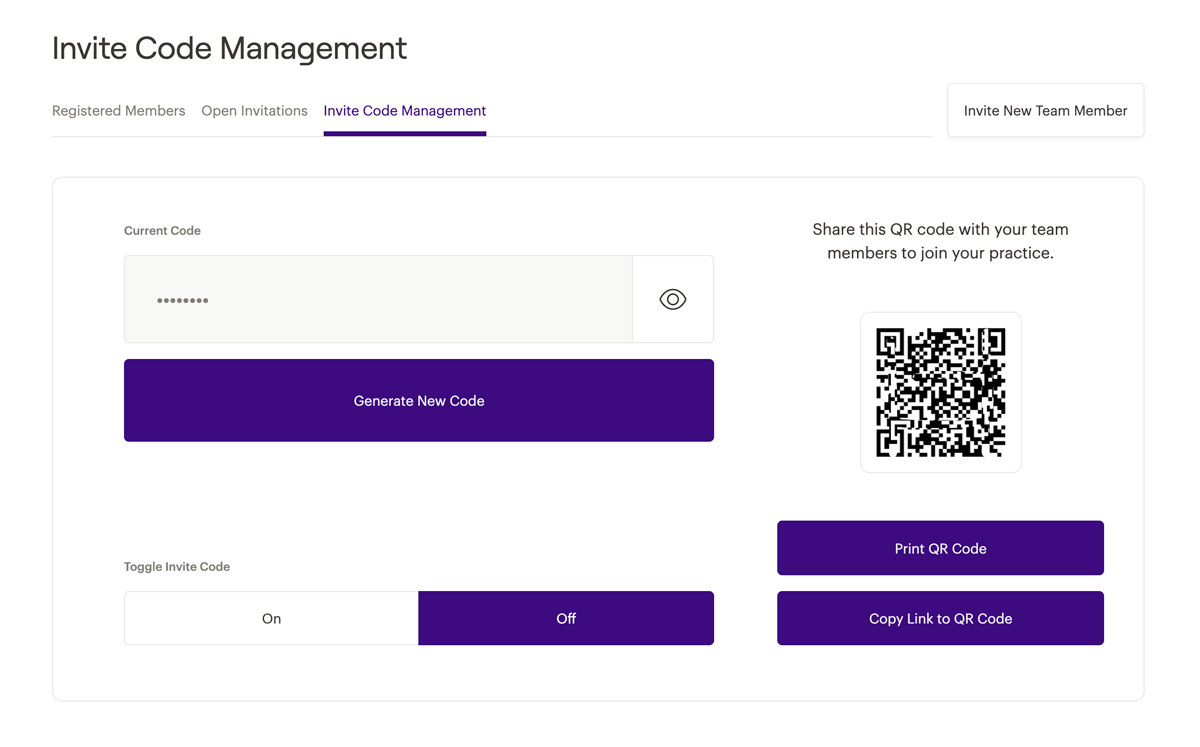
- In the invite code management tab, you can create a unique invite code and QR code for your team to use.
- The QR code can be scanned from the screen or printed and shared with your team. Alternatively, you can copy the link via the button on screen and share the link directly with them.
- The new team member can scan the QR code with their personal device
- The QR code will link them to the account setup process.
- Once they've completed the setup, they'll be linked to your practice.
Share this article.
Related articles.
No items found.

